Teleprompter.com
- 4.6
- Rating
- 500.00K
- Installs
- Free
- Price
 Analysis by App-foxy
I tested Teleprompter.com as a practical speaking aid rather than treating it like a simple scrolling-text utility. It is a free productivity app from Teleprompter LLC, built around a straightforward promise: keep your script visible while you record or present. That sounds narrow, but the difference between a teleprompter that helps and one that distracts you usually comes from the small details—how quickly you can prepare a script, how naturally you can read it, and whether the workflow survives a busy day.
My overall impression is positive. The app makes sense for short videos, lessons, presentations, announcements, and rehearsed messages where I want to sound prepared without memorizing every line. It is also approachable enough for someone who has never used a teleprompter before. At the same time, it is not a complete replacement for a dedicated filming setup, a powerful scriptwriting tool, or a full production suite. Its value depends on whether your main problem is remembering what to say while looking toward the camera or managing a larger recording operation.
How I used it for a normal recording workflow
The most useful way to approach Teleprompter.com is to separate preparation from performance. I first write or paste the script, then edit it for speaking rather than reading. Long sentences that look fine on a screen often sound stiff aloud, so I break them into shorter thoughts and add visible spacing where I naturally pause. This preparation matters more than simply increasing the scroll speed.
You May Also Like

 Blood Strike: 2.5 Anniversary
Blood Strike’s Loadouts Turn Every Drop Into a Tactical Gamble
A close look at Blood Strike’s custom loadouts: how fast access to signature weapons reshapes its battle royale rhythm, rewards preparation, and narrows the gap between fights.

 Pandora - Music & Podcasts
Pandora’s Music Is Easy to Start, but Harder to Recover
Pandora’s strength is its low-effort path from a seed to a station. Its weak spot is how much confidence it asks you to place in connection, setup, and quiet recovery.

 8 Ball Pool
 Is Built on Rivalries, Rematches, and Routine
A close look at the rivalries, rematches, shared routines, and unanswered safety questions that turn a quick pool match into a persistent mobile community.

 Samsung Music
’s Quiet Strength Is Playing What You Already Own
Its reach comes less from spectacle than from dependable access to a personal library. That simplicity is both the app’s strongest retention engine and its ceiling.

 AccuWeather: Weather Radar
AccuWeather Review: A Quick, Clear Forecast for Everyday Decisions
For everyday plans, the best forecast is the one you can understand quickly. AccuWeather makes rain timing, radar, and local conditions easy to act on, with a few trade-offs.

 Hill Climb Racing
Why Hill Climb Racing Still Turns Crashes Into One More Run
A tiny car, a bumpy hill and one more upgrade: Hill Climb Racing keeps resurfacing because its simple chaos makes every near-miss feel personal.
More From Our News Desk



For an everyday example, imagine recording a short update for a community group. I might have several points to cover, a closing reminder, and a name or date that I do not want to get wrong. Instead of keeping notes on a second phone and repeatedly looking away from the camera, I place the complete wording in the prompter and rehearse it once. During the actual take, the text gives me a steady reference while I keep my attention near the lens.
That workflow is where the app feels most convincing. It reduces the mental load of remembering the order of ideas, but it does not force me to read every word mechanically. I can use the script as a rail: follow it closely for precise information, then speak more naturally between important lines. For short clips, this is often faster than recording from memory and making several corrections afterward.
I would not treat the first draft as recording-ready. Teleprompter text needs to be written for the eye and the voice. I prefer one idea per line or short block, with punctuation that makes pauses obvious. If a paragraph fills the screen, I am more likely to lose my place or rush. A useful habit is to remove greetings, repeated explanations, and filler before opening the camera. The app can display the words, but it cannot make an overlong script feel concise.
There is also a practical question about where the phone sits. If the display is far below the lens, even a smooth scroll can produce noticeable eye movement. I get a more natural result when the screen is close to the camera’s height and I keep the text area easy to scan. This is not a special feature of the application, but it affects the result enough that new users should plan the physical setup before blaming the software.
Teleprompter.com is especially useful when accuracy matters. A product demonstration, instructional explanation, formal introduction, or message with several names benefits from having the exact wording available. It is less essential for a casual video where a few pauses and imperfect sentences make the speaker seem more relaxed. I found the strongest use case in the middle: content that should sound conversational but still needs structure.
Settings I would check before pressing record
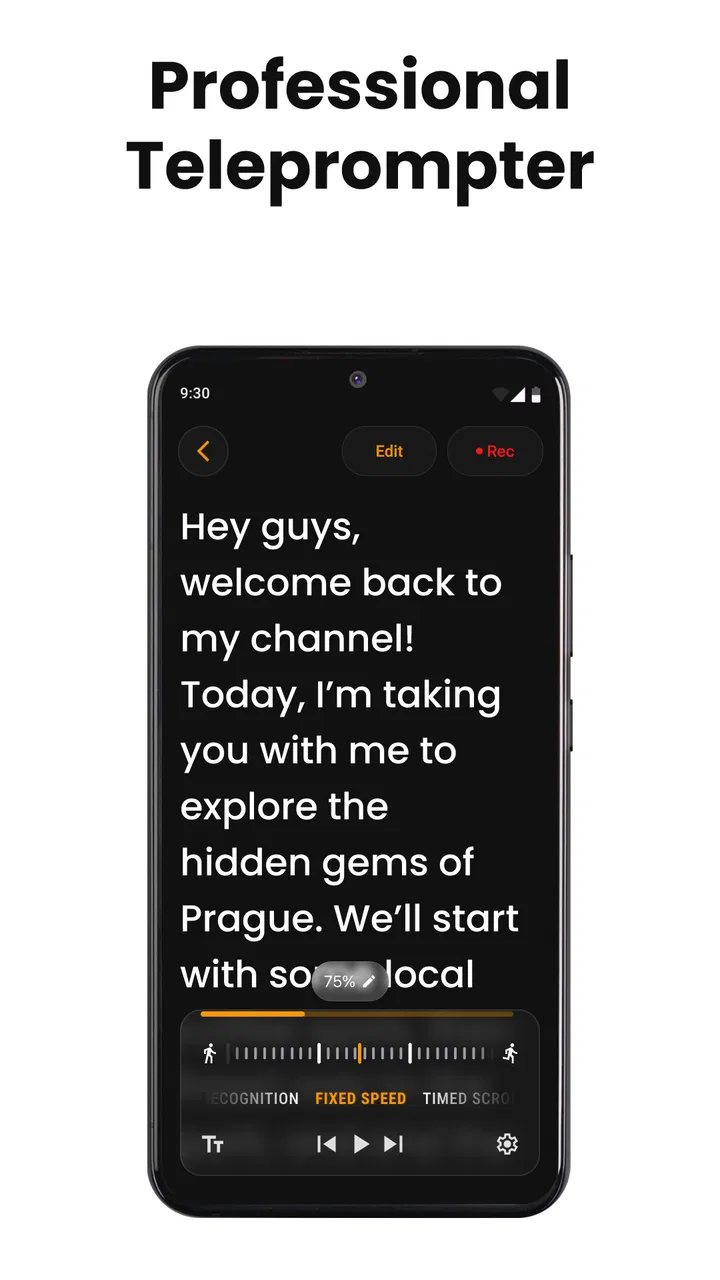
The first adjustment I make is reading speed. I do not choose a speed based on the length of the script; I choose it based on the way I speak. A fast scroll can make a confident speaker sound hurried, while a slow one encourages awkward pauses and glances toward the text. I rehearse a section, notice where I naturally finish each thought, and then adjust the movement until the words arrive just before I need them.
Text size is equally important. Smaller text may show more of the script, but it increases the chance of losing the current line. Larger text is easier to follow, especially when the phone is mounted farther away, although it can reduce the amount visible at once. I prefer the largest size that lets me see a complete thought without constantly waiting for the next line.
Contrast and screen brightness deserve attention too. A dark room and a bright display can make the screen distracting, while a dim display may be difficult to follow in daylight. I check the screen from the exact position where I will record instead of making the adjustment while holding the phone close to my face. That small change gives me a better idea of whether the words remain readable without pulling my attention away from the camera.
Before a serious take, I also check the beginning and ending behavior of the script. I want enough time to settle my posture before the first sentence starts, and I want the ending to feel deliberate rather than stopping abruptly because the text has finished. A short pause at the beginning can make the opening look more composed. Likewise, leaving a final line that reminds me to hold my expression for a moment can make the recording easier to edit later.
One of my most useful habits is marking transitions in the script itself. I use short headings or simple visual breaks for changes such as “example,” “next point,” or “closing.” These are not there to be spoken; they are navigation cues. They help me recover quickly if I look away or restart a sentence. This is a better use of formatting than filling the script with elaborate notes that compete with the words I actually need to say.
Users also commonly wonder whether they need to pay before they can try the core idea. The app is free to install and use as a free productivity option, while in-app purchases range from $4.99 to $299.99 per item. I would therefore begin with a simple personal workflow before considering any purchase. If the basic scrolling experience does not fit your speaking style, paying for additional access will not solve the underlying issue of poorly prepared text or an unsuitable camera position.
The age rating is Everyone, which matches the general nature of the tool. It is designed for ordinary writing and recording tasks rather than a specialized professional audience. The app was released on October 4, 2024, and supports a minimum operating system version of 9. That makes checking device compatibility worthwhile before planning a recording session on an older phone or tablet.
Repeatable habits that make the app faster
Experienced use is less about constantly changing controls and more about creating a repeatable sequence. I keep a clean master script, then make a performance copy with shorter lines, spoken punctuation, and clear section breaks. Before recording, I read the first few lines aloud, set the pace, and rehearse the transition into the main point. This prevents the common mistake of starting the recording before I know how the script feels in motion.
Another helpful pattern is to record in sections rather than forcing one perfect take. For a longer explanation, I divide the script at natural pauses and treat each section as a separate speaking task. The prompter keeps the wording consistent, while the breaks give me a chance to reset my posture and energy. This is particularly useful when one part contains precise information and another part is more conversational.
I also recommend keeping a short version of important scripts. The full draft may be useful for rehearsal, but a condensed version can be better for the final take. I remove sentences that merely repeat the previous point and leave prompts for ideas I already understand. This creates a useful trade-off: the more familiar I become with the material, the less text I need on screen, and the more natural my eye contact becomes.
For presentations, I would use the app as a discreet backup rather than a word-for-word manuscript. I place only the opening, key transitions, figures I must state correctly, and closing thought into the prompt. That keeps me from burying my attention in paragraphs while still protecting me from losing the structure. For a video, I may use more complete wording; for a live talk, shorter cues usually look and feel better.
There is a similar advantage for people who speak in a second language. A carefully prepared script can reduce the pressure of searching for vocabulary while talking. However, I would still rewrite complex sentences into familiar phrases. Reading a translation that is grammatically correct but unnatural is tiring, and the scrolling text can make that stiffness more noticeable. The app helps with recall and pacing; it does not replace language practice.
When I repeat a format regularly, I keep the same order of operations: prepare the script, shorten the lines, rehearse aloud, set the pace, record a test section, and then make the full take. This turns the application into part of a production habit instead of another tool I have to rediscover every time. The real efficiency comes from reducing decisions before recording.
Where the workflow reaches its limits
The biggest limitation is that a teleprompter can encourage over-reading. If I stare at the moving words instead of using them as prompts, my voice becomes flatter and my expression less convincing. This is not a defect unique to Teleprompter.com, but it is the main reason a technically correct recording can still feel artificial. Shorter lines, sensible pacing, and occasional rehearsal without looking at the screen help reduce that effect.
The app is also not the best choice when I need a full script-production environment. Writers who want extensive research organization, collaboration, detailed version control, or advanced editing may prefer a dedicated writing platform and use a teleprompter only at the final stage. Likewise, a creator managing multiple cameras, lighting, audio, and post-production will still need other tools. Teleprompter.com solves the speaking problem, not the entire studio workflow.
I would skip it for spontaneous content where the charm comes from reacting in the moment. If I am answering a simple question or sharing an informal thought, a prompt can make me sound less like myself. It is also a poor fit for someone unwilling to rehearse even briefly. The application can display a script, but it cannot decide which words should be emphasized, where a joke should breathe, or whether the delivery matches the audience.
There is a physical limitation as well. A phone screen is still a phone screen. If the camera must be positioned far away, the text may become harder to read, and the relationship between the display and lens may produce visible eye movement. A larger dedicated teleprompter can be better for long-form recording, studio work, or situations where the presenter needs to stand several steps away.
Potential buyers should also think carefully about the in-app purchase range. The free entry point makes experimentation easy, but the upper end of the listed purchase range is substantial. I would not assume that every feature or plan is necessary for a casual user. First identify the exact problem—reading speed, script organization, recording convenience, or something else—and only then decide whether an upgrade is justified for your own workflow.
The app has earned an average rating of 4.6 from around 11 thousand ratings, with roughly 299 written reviews, and it has passed 500 thousand installs. Those figures suggest that many people find the basic concept useful, but they should not replace personal testing. A teleprompter is highly dependent on speaking style, device placement, script length, and whether you prefer exact wording or loose prompts.
Who will get the most from it
I would recommend Teleprompter.com to new video creators, teachers preparing short lessons, small organizations recording announcements, and professionals who occasionally need a polished message without building a complete studio. It is also a good fit for anyone who knows what they want to say but loses confidence when the camera starts. The app gives those users a visible structure without requiring a complicated production setup.
It is particularly helpful for repeatable formats. If I record a weekly update, a series of tutorials, or regular internal messages, a consistent prompt routine saves time and reduces avoidable mistakes. The strongest benefit appears after the first few sessions, when script formatting and pacing become familiar. At that point, I spend less energy operating the tool and more energy improving delivery.
I would point advanced presenters toward a more specialized setup when they need a larger display, extensive cue management, or studio-level control. I would also suggest a normal notes app for people who only need three reminders during an occasional talk. The right comparison is not “which app has more features?” but “how much prompting do I actually need?” Teleprompter.com sits comfortably between loose notes and dedicated hardware.
My verdict after building a routine around it
Teleprompter.com succeeds because it addresses a specific, common problem: keeping prepared words available while trying to look and sound natural. I found it most effective when I treated the script as a speaking map, not a wall of text. The app is easy to understand, free to start, and flexible enough for everyday recordings, presentations, and rehearsed messages.
Its weaknesses are just as clear. It cannot rescue a badly written script, eliminate the need for rehearsal, or replace equipment designed for serious studio work. The purchase range means I would approach paid options carefully, especially if I only record occasionally. And for spontaneous content, the prompt may get in the way rather than help.
My recommendation is to try a short, realistic project first: write a one-minute message, break it into spoken lines, position the phone near the camera, adjust the pace, and record a test. If the result feels more confident without becoming robotic, the app has earned a place in your routine. The real strength is not simply showing words; it is turning preparation, pacing, and delivery into a repeatable habit.
FAQs for Teleprompter.com
01What is Teleprompter.com and who is it designed for?
Teleprompter.com is a script-scrolling app designed to help users read prepared text while recording videos, livestreaming, presenting, or speaking in public. It can be useful for content creators, teachers, business professionals, journalists, and students. After testing its workflow, the main appeal is the convenience of keeping your script visible while maintaining a more natural delivery instead of repeatedly looking down at notes.
02Can I record videos while reading my script in Teleprompter.com?
Yes, Teleprompter.com is built around recording while your script scrolls on the screen. You can generally prepare or import text, adjust the scrolling speed and appearance, and then use the teleprompter view while recording. This is particularly helpful for social media videos, presentations, and tutorials. However, the exact camera features and available recording options may depend on your device, operating system, and the plan associated with your account.
03Does Teleprompter.com work with external cameras or video apps?
Teleprompter.com may be used in different recording setups, including a phone or tablet placed near a camera, depending on the features supported by your device and subscription. Some users may also use it alongside other recording equipment or applications. Before downloading, check the current app listing and official documentation for compatibility details, because support for remote control, camera integration, mirroring, or third-party workflows can vary between Android, iOS, and premium versions.
04Is Teleprompter.com free to use, or does it require a subscription?
Teleprompter.com can typically be downloaded and tried without an upfront purchase, but some advanced tools may be limited to paid plans or in-app purchases. Restrictions can involve script management, recording features, customization, cloud access, branding, or usage limits. Since pricing and included features may change, review the current Google Play or App Store listing before subscribing. Also check whether the subscription renews automatically and how cancellation works.
05Can I customize the text and scrolling speed in Teleprompter.com?
Yes, customization is one of the app’s most important practical features. You can usually modify the script’s size, layout, contrast, and scrolling speed so the words remain comfortable to read while speaking. These controls make the app more useful in different lighting conditions and for users with different reading preferences. It is worth practicing before recording, because the ideal speed depends on your speaking pace, script formatting, and the distance from the screen.
Pros
- Simple interface makes scripts quick to create and manage.
- Adjustable scrolling speed helps match different speaking styles.
- Works well for recording videos
- presentations
- and live streams.
- Text remains easy to read while the camera is in use.
- Useful for creators who want fewer retakes and smoother delivery.
Cons
- Some advanced tools may require a paid subscription.
- Long scripts can take time to format comfortably on smaller screens.
- Performance may depend on the device and recording setup.
- Hands-free control options may require additional compatible hardware.
- Users may need practice to maintain natural eye contact while reading.

Teleprompter.com
Gallery